“I don’t want my users copying data to removable drives. How can I prevent this?”
Today I want to answer this common question asked to our team. Removable drives are widespread. Current mobile devices can now store up to 8 GB of data on a micro-SD card, which is no bigger than your thumb nail. Eight gigabytes is a huge amount of data and it could be your company’s Intellectual Property (IP) going out the door. There is a need to protect your company’s sensitive information from being transferred to removable storage devices; Group Policy in Windows Server 2008 and Windows Vista can help you.
You can control access to six removable storage categories (actually seven but the seventh category controls access to ALL removable storage devices). These categories include CD and DVD, Floppy Drives, Removable Disks, Tape Drives, and WPD devices. Today’s computers usually do not included a floppy drives because the amount of data that fits on a floppy disk seems trivial in the age of one terabyte drives—regardless, you can restrict access to floppy drives, which includes USB floppy drives. Removable drives included classic USB thumb drives. WPD devices include media players, cell phones, CE devices, and some auxiliary displays. There is a custom category that allows you to identify the unique identifier of a device and control access of that device based on the unique ID.
Each device category provides two types of access control—deny read and deny write. These policy settings apply to Windows Vista or later (to included Windows Server 2008) and can co-exist in GPOs applying to clients earlier than Windows Vista; however these older operating systems ignore the policy settings.
You can find these policies under the Removable Storage Access category, under User or Computer Configuration\Policies\System\Removable Storage Access
These policy settings change the security descriptor on the removable objects. Changing the security descriptor requires a computer reboot. Window’s does not reboot the computer when the policy changes these security descriptors. However, Removable Storage provides a policy setting to which you can enable to force a reboot. Enable the Time (in seconds) to force reboot policy setting and provided value (in seconds) for which Windows waits before rebooting the computer to apply the new security descriptors for removal drives.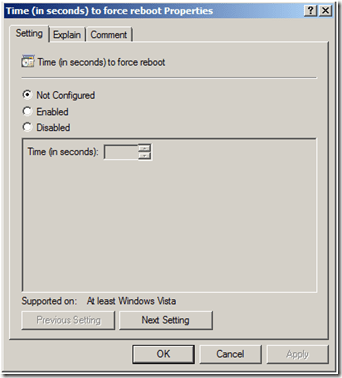 So, keep your Intellectual Property secure by controlling access to removable storage devices. Delegate write permissions to a limited user set, or limit removable storage write access to a single workstation. You can do your part to keep your company’s sensitive data where it belongs.
– Mike Stephens
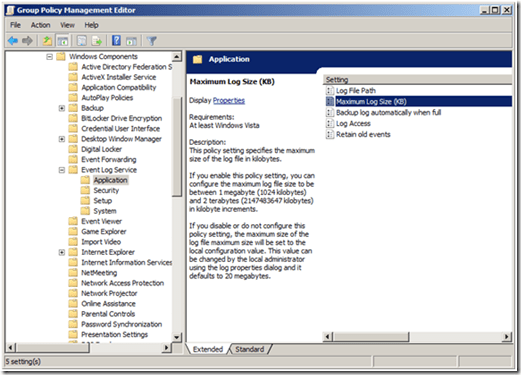 The next two policy settings are related. The Event Logging service uses the Retain old events and Backup log automatically when fullpolicy settings when the event log reaches the maximum file size (defaults to 20 MB or the value specified in the Maximum Log size policy setting). With the Retain Old Events policy setting enabled, the Event Logging service stops writing new events to the event log when the log file reaches or exceeds the maximum value and you lose all new events. With this policy setting disabled, new events overwrite old events. When you enabling the Backup log automatically when full and the Retain old events policy settings, the Event Log service closes the current event log, renames it, and then creates a new log. The Backup log automatically when full policy setting works only when you enable Retain old events policy setting.
 The last setting and one that I think is the most beneficial is the Log Access setting. Enabling this setting allows you to enter a security descriptor for the log file. The security descriptor controls who can read, write, or clear the event log. You enter the security descriptor using Security Definition Description Language (SDDL), which is document on MSDN(
 These new policy settings for the Event Logging service provide more flexibility and control from earlier versions. Using Group Policy to control where event logs are written, how large they can grow, how they are preserved, and who can manage them are key to change control and security auditing. You can implement these policy settings in your existing Group Policy objects and they will not affect operating systems earlier than Windows Vista.
 Esoteric I.T.