This scenario covers managing power on Windows XP client computers using Group Policy Preferences. Let’s cover how Windows XP manages power before we cover Group Policy Preferences Power Management.
Windows XP Power Management
Windows XP only has one active power scheme for the entire computer and that scheme is based on the current or previously logged on user—that is to say Windows XP power schemes are only user-based. This means the power scheme can change as each user logs on. Also, it means that last logged on user’s power settings are the settings that remain once the user logs off. And yes, each user has its own power configuration; however, the entire operating system only has one active power scheme.
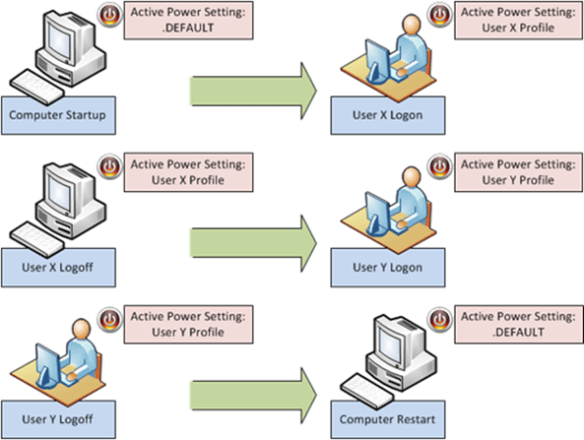
A recently started computer at the logon prompt makes the power configuration from the .DEFAULT profile the active power profile. User X logs on to the same computer. The active power profile is now read from user X’s user profile. User X logs off the computer. User X’s power profile remains the active power profile for the computer. Windows XP does not make the .DEFAULT power profile the active power profile. User Y logs on the computer. User Y’s power settings now become the active power profile. User Y’s power settings remain the active power profile after they log off the computer. We restart the computer and, once again, the active power profile is read from .DEFAULT.
Group Policy Preferences Power Options
Understanding how Windows XP manages the active power profile helps us better understand how Group Policy Power Option preference items manipulate Windows XP’s active power profile. Let’s start with computer startup. We’ve established that Windows XP reads power settings from the .DEFAULT profile into the active power profile. A Power Option preference item applying to a Windows XP computer does two things: it changes the power settings in the .DEFAULT profile and it makes those new settings the active power profile. A Power Option preference item applying to a user does two things: It changes the power settings in that user’s profile and it makes those new settings the active power profile. Remember there is only one active power profile—it’s the profile that was last made active.
Precedence
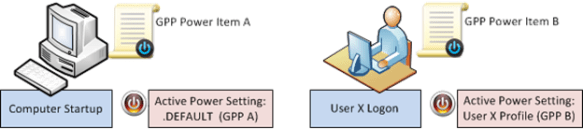
So predicting GPP Power Option precedence is trivial for computer startup and user logon. But background refresh can introduce some confusion. The computer starts up and receives GPP Power Item A. GPP Power Item A becomes the active power profile. User X logs on and receives GPP Power Item B. The active power scheme changes from A to B. Now, let’s presume that User X is a local administrator. This means User X can change the power settings, which changes the active power settings. So, User X changes the active power profile to power settings C. Now, a Group Policy background refresh occurs.
The background refresh changes the active power profile. And, as we previously covered, the last applied GPP Power item is the active power profile. When we last left our example computer, the active power profile was power settings C, which were created when the user changed their settings using the user interface. If the computer receives GPP Power Item A, and the user receives GPP Power Item B, then what is the resulting power profile? Power item B becomes the active power profile because it is the last power profile that is made active.
Let’s change the scenario. Let’s deploy GPP Power Item A to the computer and not deploy anything to the user because we want to apply a single power profile that affects all the users of the computer. Makes sense right? No, not in this case. The computer starts up and applies GPP Power Item A to .DEFAULT and makes GPP Power Item A the active power profile. User X logs on, and does not have a GPP Power item applied. The user loads their power profile from their user profile, and it becomes the active power profile. The power profile does not change until the user changes it (the need to be a local administrator) or during Group Policy refresh when the computer reapplies the GPP Power item; thus becoming the active power profile. You need combine Group Policy loopback processing (in replace mode) with GPP Power items to create one single GPP Power item that applies to all users of a computer.
Summary
I could easily add another five pages to cover all the different combinations of GPP Power items between computer and user settings. However, the main important thing to remember is there is only one active power profile for the entire computer running Windows XP. And, the active power profile is the power profile that was made active on the computer, regardless if it was done in the context of the user or computer.
— Mike Stephens
 The Power Option preference item gives you the ability to configure hibernation, prompting for password when the computer resumes. Also, you can configure the Power button action when you close the lid of the computer (laptop), press the power button, or press the sleep button.
 The above image shows another configured Power Options preference item. In this example, Always show icon on the taskbar has a red dashed underline, which means the setting is disabled. This means when Group Policy applies this preference item, Prompt for password when computer resumes from standby and Enable hibernation are enabled and, Always show icon on the taskbar is ignored. You enable and disable a setting by using the function keys on the keyboard.
 I’ll start with the Sleep power management category and its policy settings. As I wrote in part one, Windows divides most Power Management policy settings into Plugged In or On Battery policy settings (Plugged In or On Battery actually appears in the name of the policy setting). This gives the category 12 policy settings total; 6 for Plugged In and 6 for On Battery. These policy provide the means to adjust how Windows Vista behaves prior to entering, during, and waking from sleep mode. I’ll begin by providing the name of each policy setting and a summary of its intent.
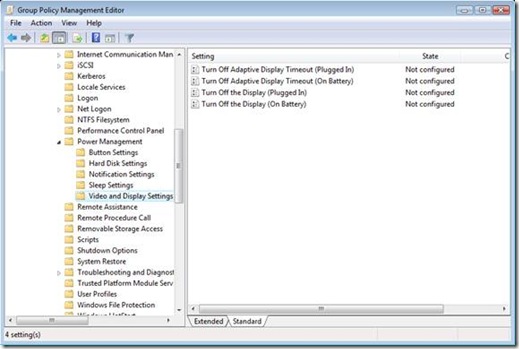 The last category in Power Management is Video and Display Settings. This category has four policy settings total, two when Plugged In and two when On Battery. The first policy setting controls a new feature included in Windows Vista– Adaptive Display. Adaptive Display Timeout, on by default, extends the time Windows waits to turn off the display if you repeatedly turn on the display using the keyboard or mouse. Enabling Turn Off Adaptive Display Timeout disables Adaptive Display timeout resulting in Windows turning off the display once the idle timeout time is exceeded, which is controlled by the remaining policy in this category. The Turn Off the Display policy settings, when enabled, allows you to enter a value in seconds indicating the maximum allotted idle time before Windows turns off the display.
 Power management Group Policy settings target computers therefore; the majority of the settings are under the Computer Configuration. The main category, Power Management, contains two settings, one settings allows you to deploy one of the standard power management configurations and the others allows you to specific a GUID of a customer power management configuration.
 The next category is Hard Disk. This category has two policy settings. As with the other power management categories, it categorizes these policy settings for when the computer is plugged-in and when the computer is on battery. You use this policy setting to shut down the user hard drive after a specified amount of inactivity. Enabling this policy setting allows you to provide the number of seconds before Windows reduces power to the hard drive.
 The last category for the blog entry is Notification. These five policy settings allow you to configure the notification levels and actions for Low Battery and Critical Battery events. Also, you can disable Low Battery user notification. Low Battery and Critical Battery level policy settings allow you to set the level where Windows will trigger Low Battery or Critical Battery actions. You determine each level by entering a percentage of remaining battery power. Your choice of settings for Low Battery and Critical Battery actions include: Hibernate, Shut down,Sleep, and Take No Action.
 Esoteric I.T.